Discover more programs, apps and games by Projectteamforyou — and show your supportprojectteamforyou.com ↗
CHATDA 찾다

Free · No admin rights · Your searches stay here

You don't need to remember the filenameOne word from inside the document is enough

That penalty clause in some contract. That one figure in a report. CHATDA indexes the text inside HWP, PDF, Word and Excel — no need to open them.

1 million files indexed in 1.1 s · sub-millisecond search · 1.9 MB executable · no account, no sign-in

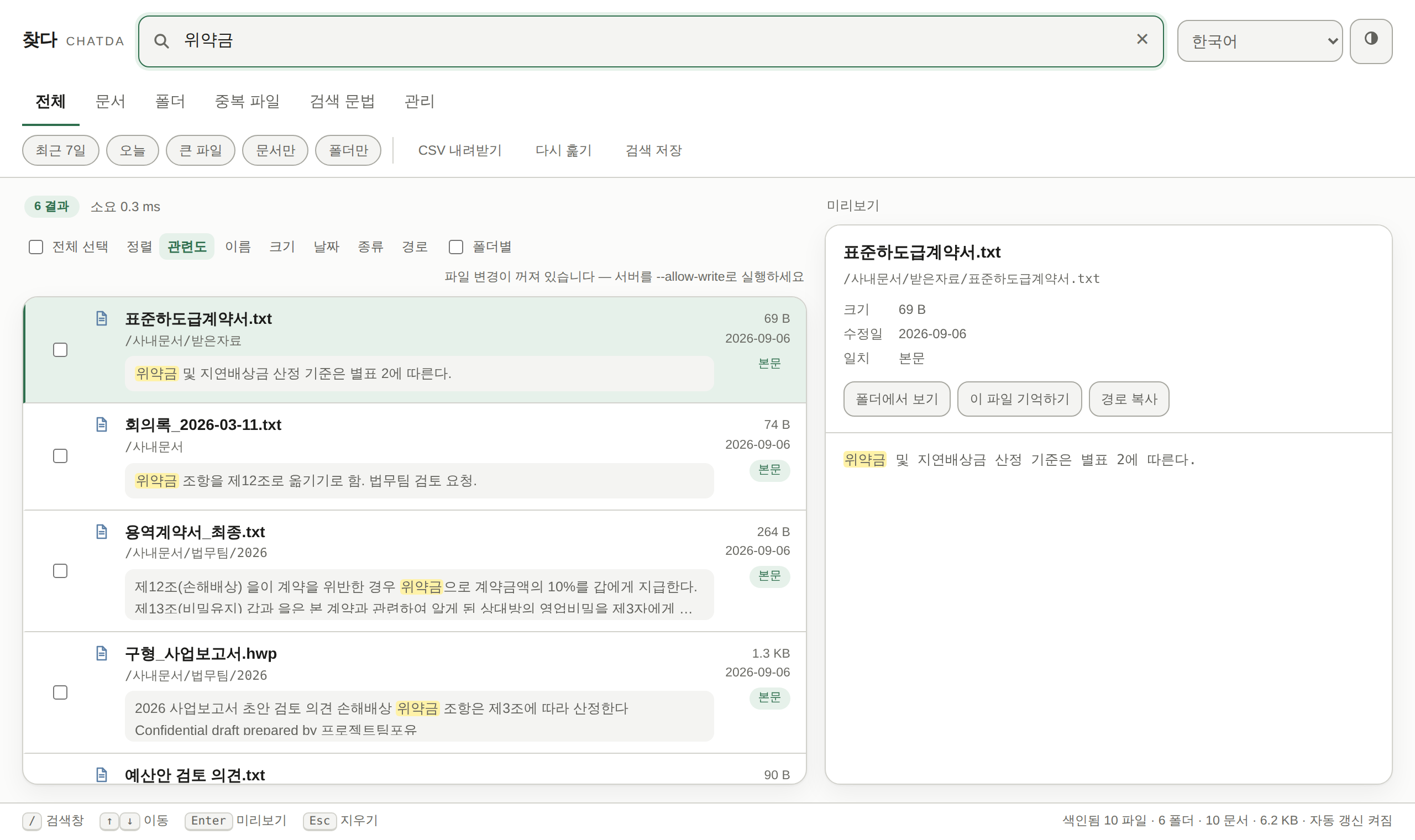
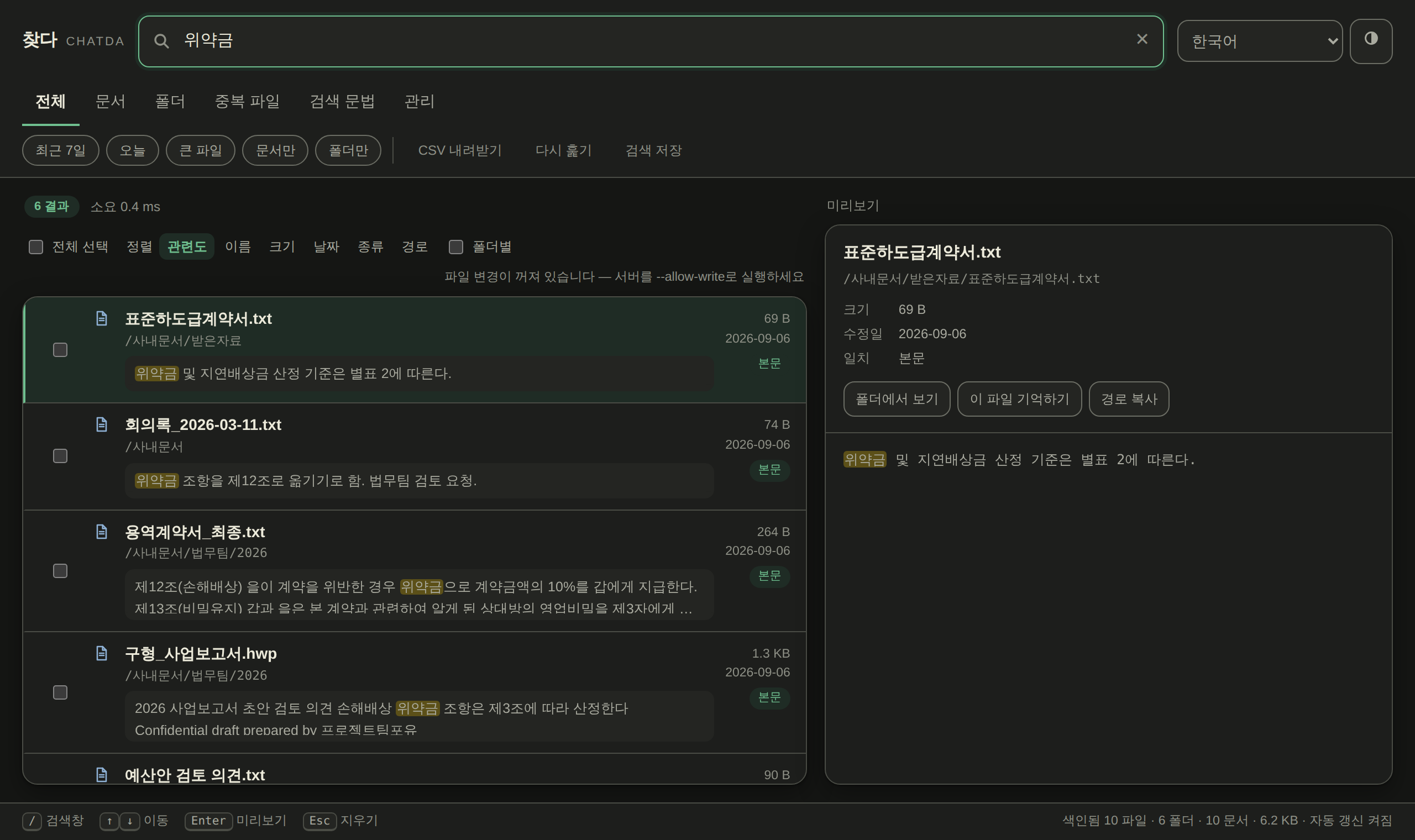
CHATDA window. Searching for a Korean word returns six files including a legacy HWP document, each row showing the matching sentence highlighted in yellow. CHATDA window in dark mode, showing search results with matching passages highlighted.

A real screenshot. The yellow parts are passages found inside the documents.

The line the market leader wrote about itself

Finding a file by name is a solved problem. The trouble starts right after that.

“File content is not indexed, searching content is slow.”

— Everything official FAQ, voidtools.com/faq

The files people genuinely cannot find are the ones whose names they no longer remember. “Which contract had that clause in it?” — a filename search will never answer that. That is where CHATDA starts.

What is different

Only what each tool states about itself.

CHATDAEverythingWindows Search
Find by filenameyesyesyes
Find by document contentsyesnopartial
Hangul (HWP) contentsyesnopartial
Korean initials · KR/EN typo recoveryyesnono
12-language keyboard & transliterationyesnono
Freeyesyesyes

△ depends on format — Windows Search reads HWP contents only on PCs with Hangul installed. Everything is among the fastest filename search tools and states in its official FAQ that it does not index file contents. As of September 2026.

Three things, done properly

Rather than adding features, we opened the three places where office search actually gets stuck.

Content

It reads inside HWP too

Hangul Word Processor 5.0 and 3.0, HWPX (including public offices’ distribution documents), PDF, Word, Excel, PowerPoint, ODF, old .txt files saved in CP949 — and documents inside the ZIP files you get by email.

The matching passage is cut out and shown right in the result row, so you never open a file to check.

Scanned documents too. Text that exists only inside an image (png, jpg, tif) or a scanned PDF without a text layer is read with the recognizer Windows already ships — no model download, no internet. Recognition runs in the background, so indexing never slows down; the text shows up in search from the next refresh.

One query reaches a contract, a meeting note, page 15 of a report and a scanned fax at once

Languages

Search that knows the language

Korean initial consonants, keyboard-layout mistakes, one-character typos, and macOS decomposed filenames all resolve to the same name.

The same principle covers 12 languages — Chinese pinyin initials, Japanese romaji, and Cyrillic, Arabic and Devanagari transliteration.

Type bgs for 报告书 · houkoku for ほうこく · godovoy for Годовой

Private

Your searches never leave your PC

Your queries and document contents never leave the PC. No account, no sign-in, no cloud upload. The interface binds to 127.0.0.1 only. The only outbound traffic is an update check, and you can turn it off.

It is read-only by default; moving or renaming files has to be switched on deliberately.

Zero third-party libraries · one executable · delete it and it's gone

It stays light

A heavy indexer is one you eventually turn off. Size and speed were design constraints from the start.

1.1s
to index 1,000,000 filenames
<1ms
per search (average)
99MB
resident at 1,000,000 files
1.9MB
one executable

Measured on a synthetic 1,000,000-file corpus (12 languages, evenly distributed) on 2 cores. Real numbers vary with your disk and file mix.

Duplicatesfound by content, not by name
Query syntaxext:hwp size:>10mb date:7d, regular expressions
AI accessa built-in MCP server lets tools like Claude find and read your documents
12 languagesinterface and search alike (ko en ja zh ru ar hi de fr es pt id)
It learnsfiles you open often rise; the record never leaves your machine
Command lineCSV and JSON output to pipe into PowerShell

How you actually use it

You don't have to remember the filename. All four of these reach the same file.

You typeIt finds
annual report Files with those words in the name — every search tool does this much.
ㅅㅇㅂㄱㅅ Korean initial consonants only still find 「사업보고서」. Five syllables, five keystrokes.
tkdjqqhrhtj Forgot to switch the keyboard to Korean? It still finds 「사업보고서」. No deleting and retyping.
the penalty shall be 10% A sentence from inside the document — HWP, PDF, Word, Excel and PowerPoint bodies are all indexed.

Too many results? Narrow them

Add these after your words, separated by spaces. They combine — contract ext:pdf date:30d sort:date

ext:pdfBy extension. ext:hwp;pdf;docx takes several.
size:>10mbBy size. Ranges work too: size:1mb..10mb.
date:7dLast 7 days. Or a date: date:>2026-01-01.
path:contractsOnly where the path contains it — narrow by folder.
-draftExclude anything with that word. !draft is the same.
report|invoiceEither one.
folder: file:Folders only / files only.
sort:dateNewest first. sort:size largest first, sort:path by path.
re:^2026.*report$A regular expression. If it's malformed it tells you why — it is never silently dropped.

Once you've found it

PreviewPress Space in the list — read inside without opening it. Your words are highlighted where they appear.
Show in folderExplorer opens with the file already selected.
Open fileOpens it in its default program.
Download CSVSave the result list as a table — for when you have to report it.
Remember this fileSearch for the same thing again and it comes up first. It fits your hand over time.

Results update as you type — there is no Enter to press. Searching happens on this PC. Your searches, file names and document text never leave it.

Getting it

Three steps and you are searching. No administrator rights, no account.

  1. Download One file (chatda-win-x64-setup.exe), about 2 MB.
  2. Double-click it If a blue window appears: More info → Run anyway. That is SmartScreen; the file is signed by PROJECTTEAMFORYOU, so check that name in the window.
  3. The search window opens in seconds Documents, Downloads and Desktop are picked up automatically. The filename index finishes first, so you can start searching right away. Reading inside your documents continues in the background — once, and about 22 minutes for 100,000 files. Full-text search switches on by itself when that finishes. Until then, every file is still findable by name.
Download CHATDA

chatda-win-x64-setup.exe about 2 MB Windows 10 · 11 (64-bit)

or with one command
winget install chatda

To remove it later: Settings > Apps. SmartScreen, antivirus notes, specs and checksums are on the download page.

Search from your phone too

There are two Android apps. Get only the one you need.

CHATDA is now on Google PlayInstall it straight from the store and get updates automatically.
Get it on Google Play

CHATDAThis phone’s documents, on this phone

  • The app has no internet permission — you can check it yourself in the app’s permission list. It cannot send anything anywhere.
  • Finds text inside HWP, PDF, Word and Excel files you saved from chat apps or email.
  • Initial-consonant search, keyboard-layout typos, twelve languages — the same engine as on the PC.
Get it on Google Play Or download the APK

CHATDA RemoteYour PC, on the same Wi‑Fi

  • In CHATDA on the PC, open ⋮ → turn on “Search from your phone”, then point the phone’s camera at the code on screen to pair.
  • Read-only. Only paired phones can connect, everything is encrypted, and nothing goes over the internet.
  • Open or share files you found on the PC right on your phone.
Get the APK

Android 9 or later. CHATDA is on Google Play; CHATDA Remote is still APK-only — Android will ask you to allow “unknown apps” the first time you install an APK. Google Play is a trademark of Google LLC.

News

0.7.2 · Released 2026-10-19

A thin line at the top now introduces the operator’s other services

  • Added a thin line at the very top of the screen linking to other programs, apps and games by Projectteamforyou (projectteamforyou.com). Your browser opens it only when you click or tap — CHATDA itself sends nothing. The same line now sits at the top of every page of the website.

See all the news

Let your AI search your own documents

CHATDA ships an MCP server. Connect it to a tool like Claude and the AI searches the documents on your PC and reads the passages itself.

  1. Install CHATDAThe MCP server comes with it. There is nothing else to download.
  2. Add one block to the configThat is Claude Desktop's claude_desktop_config.json. Paste the block below and change the folder to yours.
  3. Just ask“Find last year's contracts with a penalty clause” — CHATDA finds them, the AI reads and summarises.
{
  "mcpServers": {
    "chatda": {
      "command": "%LOCALAPPDATA%\\Programs\\chatda\\chatda-mcp.exe",
      "args": ["--mcp", "--root", "C:\\Users\\me\\Documents"]
    }
  }
}

Seven tools: find by name · find in contents · read a document · find duplicates · index status · saved searches · searches that found nothing

Connecting an AI does not send your documents anywhere. MCP speaks over standard input and output, so no socket is opened — two programs on the same PC are talking.

Scripts can call it too. While CHATDA is running, %LOCALAPPDATA%\chatda\api.json holds the address and this session’s token; call the read-only API (/api/v1/search?q=…), open only on 127.0.0.1, with Authorization: Bearer.

From one PC in daily use

Copied from the maker's work PC on 9 September 2026.

105,630
files indexed
74,157
documents read inside
102.5 MB
index size
10 ms
to find 200+ results

Measured on one machine; your numbers depend on your PC and files. The index never leaves your computer.

Measured against someone else's yardstick, too

8 Oct 2026, CHATDA 0.4.1. MIRACL, a public test: native speakers marked the Wikipedia passage answering each query.

0.31
accuracy on full-sentence questions (nDCG@10) · 0.3.0: 0.025
0.2%
questions with no result at all · 0.3.0: 73%
6,871
questions judged by native speakers · 11 languages
2–16 ms
average time per question · 40,000–220,000 documents

Scores run from 0 to 1, where 1 is perfect. On the same data that is 96% of the standard BM25 formula — with no dictionary and no AI model. Measured on the MTEB hard-negative edition (40,000–220,000 confusable documents per language); Portuguese is not in this dataset.

Sources: MIRACL paper · MIRACL data · MTEB paper

Frequently asked questions

Does it use the internet?

Indexing and search happen entirely on this PC. Your search terms, file names and document contents go nowhere, and there is no account or sign-in. The one exception is a once-a-day check for a newer version — it sends nothing — and you can turn even that off under ⋮ More. If you turn on “Search from your phone” (off by default), the PC answers only phones you paired yourself on the same Wi‑Fi — still without going through the internet.

Do I need admin rights?

No. It installs into your own user folder, so it works on locked-down office PCs too.

How long does the first index take?

Filenames: 1 million files in 1.1 s. Document contents are filled in afterwards — about 22 minutes for 100,000 documents (measured). Filename search works immediately meanwhile, and the tray icon shows progress.

Which file types does it read inside?

Hangul 5.0/3.0/HWPX (including public offices’ distribution documents), PDF, Word, Excel, PowerPoint, ODF, text (including CP949), and documents inside ZIP files. Text in scanned images (png, jpg, tif) and in scanned PDFs without a text layer is read with the recognizer built into Windows — nothing to download. Most “high compression” (JBIG2) scans from office copiers are read too.

Will antivirus or Windows warn me?

It may. The release files are code-signed by PROJECTTEAMFORYOU, but the certificate is new, so SmartScreen can still warn for a while — when it does, check that the publisher shown is PROJECTTEAMFORYOU. The installer's SHA-256 is listed on the download page as well.

Can I send a file I found to someone?

Yes. Press “Copy file” (Ctrl+C) on a result, then Ctrl+V into mail, Teams or a chat app and the file itself is attached. “Copy as text” copies the name, path and matching passage as one block, and PDFs and images can also go through the Windows share sheet. To send several at once, “Zip & copy” bundles just the selected files into one ZIP and copies it, so it pastes as a single file; a window lets you choose where to save it (new folders included), and Shift+click saves to Downloads without asking. CHATDA sends nothing itself — Windows does the sending.

Where is my search history kept?

Queries and their result counts are kept only on this PC, in %LOCALAPPDATA%\chatda\usage.tsv, and never leave it. The “Recent searches” under the search box show that same record, and “Clear history” or the admin view removes it at any time. Searches made from a paired phone are not recorded here.

Can I narrow results with filters?

Yes. Add conditions to the search, such as ext:hwp, date:2026-09, size:>10mb, path:Legal or -copy. Active filters show as chips under the search box and ✕ removes one at a time. A date means the whole day (or month), and "today" starts at midnight in this PC's time zone.

How do I get new versions?

Once a day CHATDA checks for a new version and downloads it, then installs it quietly when you close CHATDA. "Install now and restart" under ⋮ More installs it right away and reopens CHATDA with the same settings. A download is installed only after both its SHA-256 and the PROJECTTEAMFORYOU signature check out, and automatic updates can be turned off under ⋮ More.

How do I uninstall?

Use "Uninstall CHATDA" in the Start menu or the Windows app list. It also removes the %LOCALAPPDATA%\chatda folder with the index and learning data, leaving nothing behind.

Can I search straight from File Explorer?

Yes. Right-click a folder and choose “Search this folder with CHATDA” to open a search limited to that folder. It is registered for your account only and can be turned off under ⋮ More. On Windows 11 it is under “Show more options”.

Can scripts or AI tools call it?

Yes. AI tools such as Claude connect over MCP, and every tool is marked read-only. Scripts call the read-only API (/api/v1), open only on 127.0.0.1; the address and token are in %LOCALAPPDATA%\chatda\api.json. Neither leaves your PC.

Can I use it on my phone?

Yes, there are two Android apps. CHATDA searches a phone’s documents on that phone only, and it has no internet permission at all, so it cannot send anything anywhere. CHATDA Remote searches your PC from the phone over the same Wi‑Fi. Android 9 or later.

Is searching my PC from the phone safe?

“Search from your phone” on the PC is off by default. Even when on, only phones you paired yourself by scanning the code on the PC screen can connect; they can only read (no launching or changing), and everything is encrypted with the key shared at pairing. Nothing passes through the internet or our servers, so both must be on the same Wi‑Fi.